When I go through the Xdebug website, I know that I need to install PHP development headers.
So, I type
sudo apt-get install php-dev
When it's done. I type
sudo pecl install xdebug
This time. The system told me "Build process completed successfully"
"Installing '/usr/lib/php/20190902/xdebug.so'
"You should add "zend_extension=/usr/lib/php/20190902/xdebug.so" to php.ini"
OK.
type
sudo find / -name php.ini
to find out where is my php.ini
It gave me the result
/etc/php/7.4/apache2/php.ini
type
sudo vim /etc/php/7.4/apache2/php.ini
and find out this paragraph
; If you use constants in your value, and these constants belong to a
; dynamically loaded extension (either a PHP extension or a Zend extension),
; you may only use these constants *after* the line that loads the extension.
add this line
zend_extension=/usr/lib/php/20190902/xdebug.so
save and quit.
restart your web server
If you can see this, means Xdebug installed right.
config xdebug
Although there have xdebug.ini, but when I open it, I saw it was generated by robot and not suggested modified by hand. And, it was true! Whateven I changed this file, the xdebug config didn't change anything.
You are trying to log into phpMyAdmin using an account other than root but are getting an error “Access denied for user (using password: YES)”. See article: MySQL Rejecting Correct Password
In MySQL 5.7 (released Oct 2015) and MySQL 8, the root MySQL user is set to authenticate using the auth_socket or caching_sha2_password plugin rather than with mysql_native_password. This will prevent programs like phpMyAdmin from logging in with the root account.
You can either create a new MySQL superuser just for phpMyAdmin or you can try changing the authentication method for root. Personally I would recommend creating a new superuser as it’s not a good idea to allow the root account to be accessed via phpMyAdmin if accessible over the internet.
In terminal, log in to MySQL as root. You may have created a root password when you installed MySQL for the first time or the password could be blank. If you have forgotten your root password, you can always Reset the MySQL Root Password.
sudo mysql -p -u root
Now add a new MySQL user with the username of your choice. In this example we are calling it pmauser. Make sure to replace password_here with your own. You can generate a strong password here.
The command below will create a new user called pmauser (call this what you like) which can access the MySQL server from localhost with the password password_here.
CREATE USER 'pmauser'@'localhost' IDENTIFIED WITH mysql_native_password BY 'password_here';
Now we will grant superuser privilege to our new user pmauser.
GRANT ALL PRIVILEGES ON *.* TO 'pmauser'@'localhost';
You should now be able to access phpMyAdmin using this new user account.
In order to log into phpMyAdmin as your root MySQL user, you will need to switch its authentication method from auth_socket or caching_sha2_password to mysql_native_password.
Open up the MySQL prompt from your terminal:
sudo mysql
Run the following query.
SELECT user,plugin,host FROM mysql.user WHERE user = 'root';
Output:
+------+-------------+-----------+
| user | plugin      | host      |
+------+-------------+-----------+
| root | auth_socket | localhost |
+------+-------------+-----------+
1 row in set (0.00 sec)
Above we can see that the plugin for the root account is set to auth_socket. This may also say caching_sha2_password. You need to change this to mysql_native_password. Also, the host value should be set to localhost or %. If it’s set to anything else, you may not be able to log into phpMyAdmin with root. See: Understanding MySQL Users and Hosts
Secure Shell (SSH) is a cryptographic network protocol used for a secure connection between a client and a server.
In this tutorial, we’ll show you how to enable SSH on an Ubuntu Desktop machine. Enabling SSH will allow you to remotely connect to your Ubuntu machine and securely transfer files or perform administrative tasks.
The SSH server is not installed by default on Ubuntu desktop systems but it can be easily installed from the standard Ubuntu repositories.
To install and enable SSH on your Ubuntu system complete the following steps:
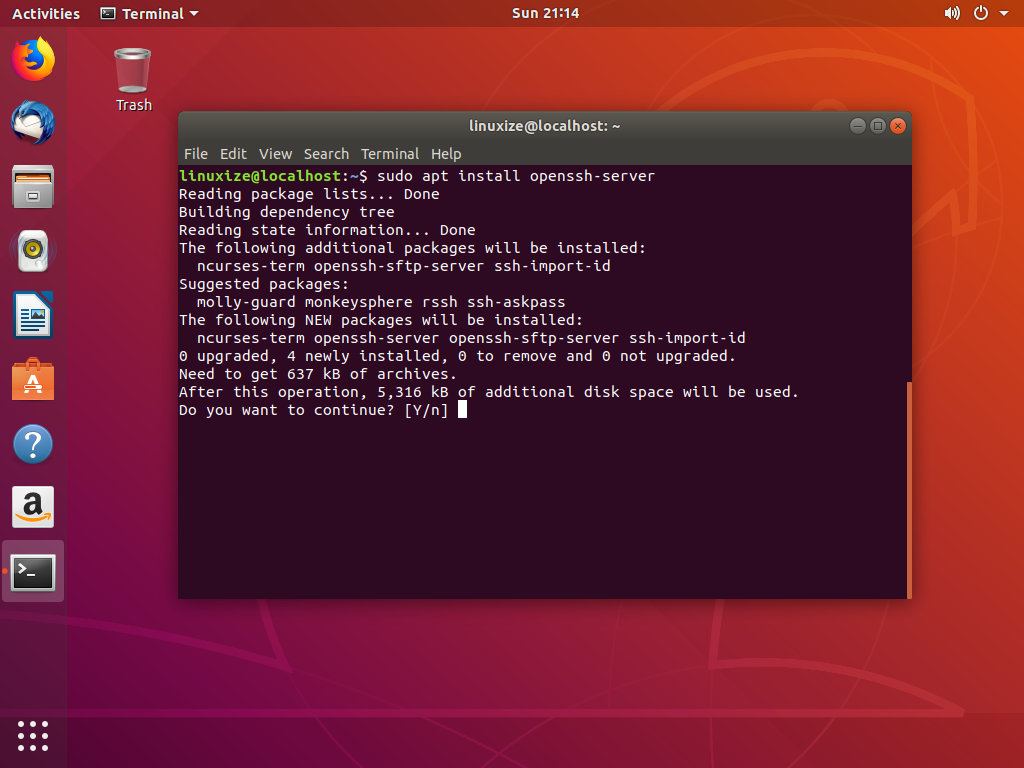
Open your terminal either by using the Ctrl+Alt+T keyboard shortcut or by clicking on the terminal icon and install the openssh-server package by typing:
sudo apt updatesudo apt install openssh-server
Enter the password when prompted and enter Y to continue with the installation.
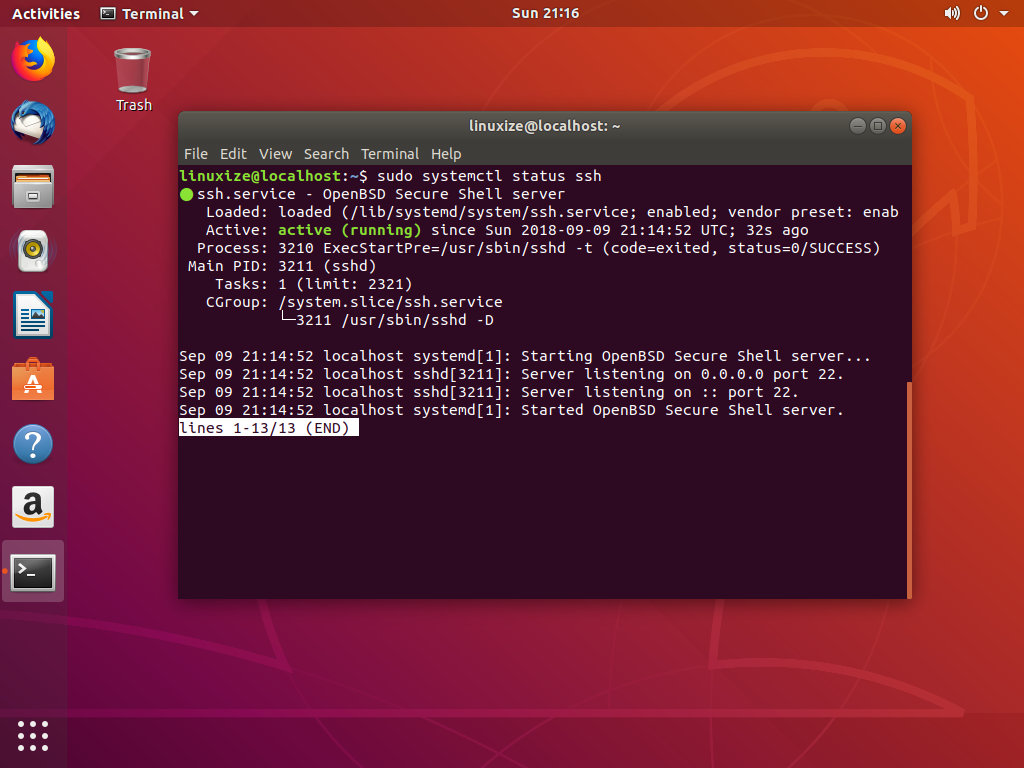
Once the installation is completed, the SSH service will start automatically. To verify that the installation was successful and SSH service is running type the following command which will print the SSH server status:
sudo systemctl status ssh
You should see something like Active: active (running) :
Press q to get back to the command line prompt.
Ubuntu comes with a firewall configuration tool called UFW. If the firewall is enabled on your system, make sure to open the SSH port:
sudo ufw allow ssh
Now that SSH is installed and running on your Ubuntu system you can connect to it via SSH from any remote machine. Linux and macOS systems have SSH clients installed by default. If you want to connect from a Windows machine then you can use an SSH client such as PuTTY .
Connecting to SSH Over LAN
To connect to your Ubuntu machine over LAN you only need to enter the following command:
ssh username@ip_address
Change the username with the actual user name and ip_address with the IP Address of the Ubuntu machine where you installed SSH.
If you don’t know your IP address you can easily find it using the ip command :
ip a
As you can see from the output, the system IP address is 192.168.121.111.
Once you’ve found the IP address, login to remote machine by running the following ssh command:
ssh linuxize@192.168.121.111
When you connect through SSH for the first time, you will see a message looking something like this:
The authenticity of host '192.168.121.111 (192.168.121.111)' can't be established.
ECDSA key fingerprint is SHA256:Vybt22mVXuNuB5unE++yowF7lgA/9/2bLSiO3qmYWBY.
Are you sure you want to continue connecting (yes/no)?
Type yes and you’ll be prompted to enter your password.
Warning: Permanently added '192.168.121.111' (ECDSA) to the list of known hosts.
linuxize@192.168.121.111's password:
Once you enter the password you will be greeted with a message similar to the one below.
To connect to your Ubuntu machine over the Internet you will need to know your public IP Address and to configure your router to accept data on port 22 and send it to the Ubuntu machine where the SSH is running.
To determine the public IP address of the machine you’re trying to SSH to, simply visit the following URL: https://api.ipify.org .
When it comes to setting up port forwarding each router has a different way to setup port forwarding. You should consult your router documentation about how to set up port forwarding. In short, you need to enter the port number where requests will be made (Default SSH port is 22) and the private IP address you found earlier (using the ip a command) of the machine where the SSH is running.
Once you’ve found the IP address, and configured your router you can log in by typing:
ssh username@public_ip_address
If you are exposing your machine to the Internet it is a good idea to implement some security measures. The most basic one is to configure your router to accept SSH traffic on a non-standard port and to forward it to port 22 on the machine running the SSH service.
If for some reason you want to disable SSH on your Ubuntu machine you can simply stop the SSH service by running:
sudo systemctl stop ssh
To start it again run:
sudo systemctl start ssh
To disable the SSH service to start during system boot run:
sudo systemctl disable ssh
To enable it again type:
sudo systemctl enable ssh
Conclusion
You have learned how to install and enable SSH on your Ubuntu 18.04. You can now login to your machine and perform common sysadmin tasks through the command prompt.
By default, SSH listens on port 22. Changing the default SSH port adds an extra layer of security to your server by reducing the risk of automated attacks.
If you are managing multiple systems, you can simplify your workflow by defining all of your connections in the SSH config file .